
Directory Privacy puts a username and password on a folder of your website. Anyone who opens a page in that folder is asked to log in first. It's useful for a staging copy of a site, a private download area or an admin folder.
- Log in to the Client Area, go to Services > My Services and open your hosting service.
- Click Log in to cPanel in the menu on the left.
- In cPanel, click Directory Privacy. You can also type its name into the Search Tools box at the top.
- Click a folder's name to open it, and click Edit next to the folder you want to protect. Your website's folders are inside public_html.
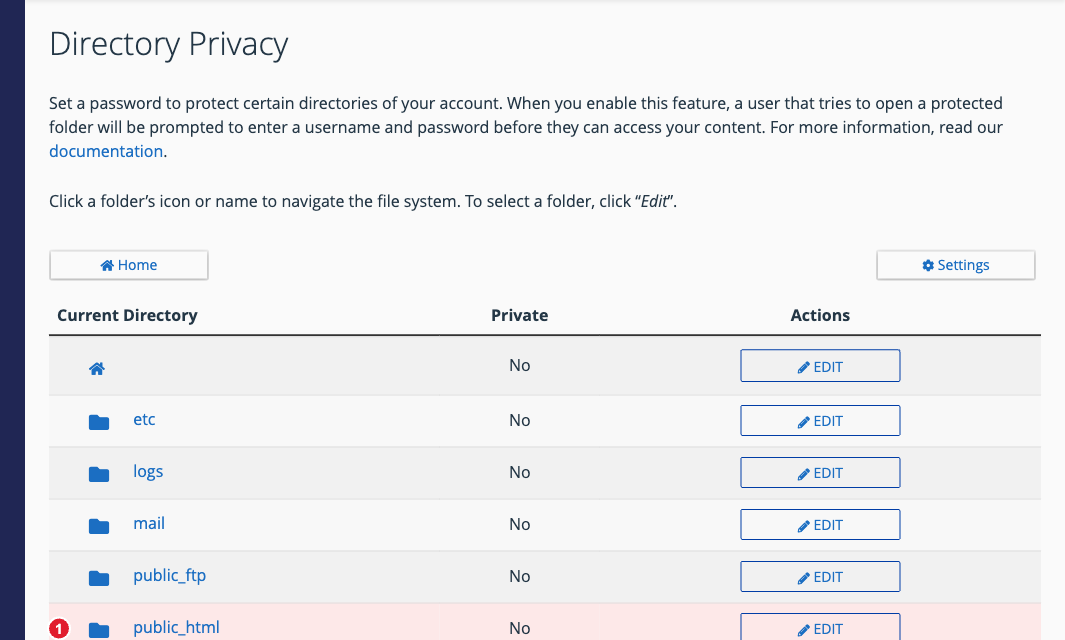
(1) Click Edit next to the folder to protect
- Under Security Settings, tick Password protect this directory.
- Enter a name for the protected directory. Visitors see this in the login box, so keep it simple (for example "Staging").
- Click Save, then click Go Back.
- Under Create User, enter a username and a strong password (or click Password Generator), then click Save.
Open the folder's address in your browser to check that it asks for the username and password. You can add more users the same way, and delete a user under Authorized Users.
To remove the protection, click Edit next to the folder again, untick Password protect this directory and click Save.
Important: Protecting public_html itself locks your whole website behind the password. Protect a subfolder unless that's what you want.
