
WordPress Management (WP Toolkit) in cPanel installs WordPress in a few clicks and lets you look after all your WordPress sites in one place: updates, plugins, themes and security.
Open WP Toolkit
- Log in to the Client Area, go to Services > My Services and open your hosting service.
- Click Log in to cPanel in the menu on the left.
- In cPanel, click WordPress Management. You can also type its name into the Search Tools box at the top.
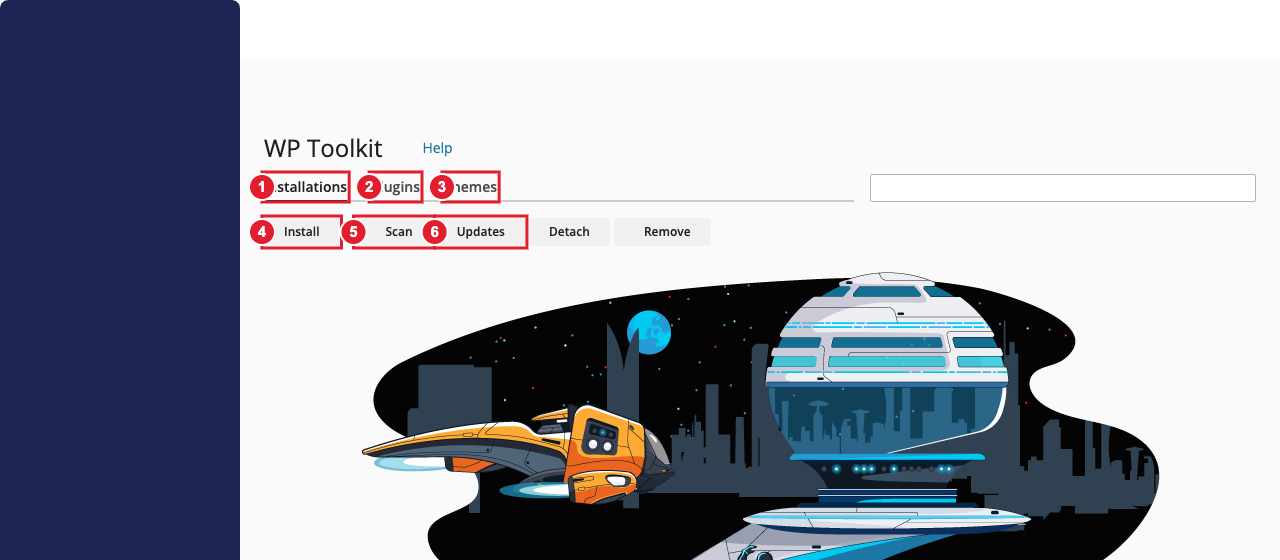
(1) Your WordPress sites (2) Plugins on all sites (3) Themes on all sites (4) Install WordPress (5) Find WordPress sites you installed another way (6) Check for and apply updates
Install WordPress
- Click Install (or Install WordPress).
- Installation path: keep https, choose the domain, and leave the folder box empty to put WordPress on the main address (yourdomain.com). Type a folder name such as blog to install it at yourdomain.com/blog.
- Website title: your site's name. You can change it later in WordPress.
- Choose the Website language. Keep the latest Version.
- WordPress Administrator: enter a username (avoid "admin"), a strong password (or click Generate) and your email address. You'll use these to log in to WordPress. Save them in a password manager.
- Open Automatic Update Settings if you want to choose how WordPress, plugins and themes update. Security updates on automatically is a good default.
- Click Install. It takes about a minute.
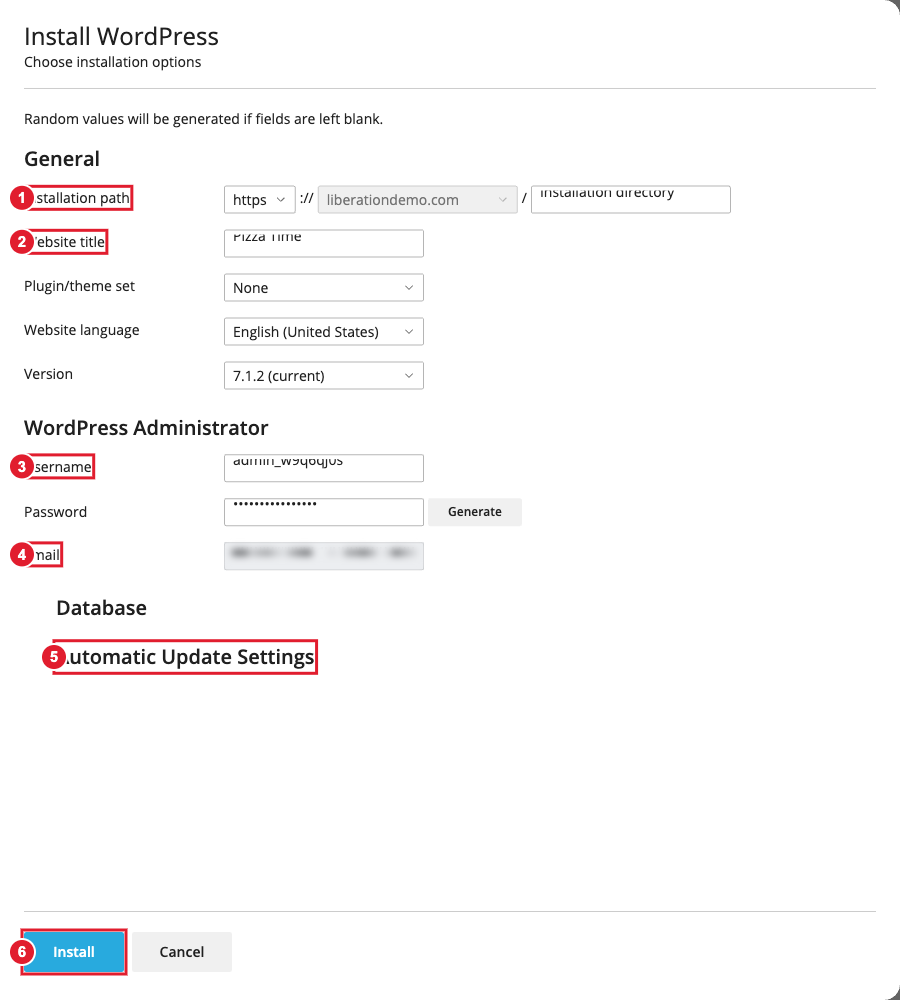
(1) Where to install (2) Site title (3) Admin username and password (4) Admin email (5) Update settings (6) Install
You can also install WordPress from your hosting service page in the Client Area: fill in the WordPress box and click Install.
Manage your sites
After installing, each site appears on the Installations tab as a card. From the card you can:
- Log in to the WordPress dashboard without typing your password.
- See and apply updates for WordPress, plugins and themes, and change the automatic update settings.
- Turn plugins and themes on or off, install new ones, or remove them.
- Run a security check and apply the recommended fixes with one click.
- Switch on maintenance mode while you work on the site, or password-protect it.
Depending on your plan, you may also see extra tools such as cloning a site to a staging copy, backups and smart updates.
Already have WordPress?
If you installed WordPress another way (for example by uploading it yourself, or after moving your site to us), click Scan. WP Toolkit finds it and adds it to your Installations so you can manage it here.
Keep WordPress up to date
Out-of-date WordPress, plugins and themes are the most common way sites get hacked. Use the Updates button to check all your sites at once, and remove plugins and themes you don't use.
Moving a WordPress site from another host? See Move a WordPress Site to Your Hosting. Need help? Open a support ticket.
