
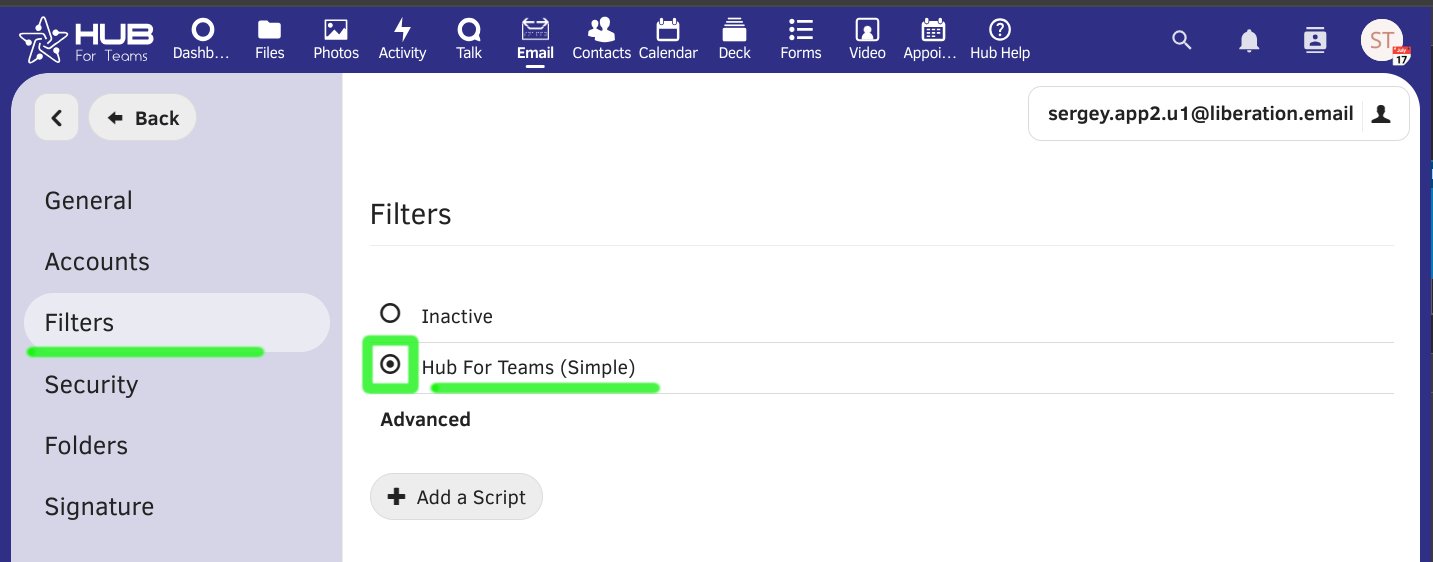
1. Navigate to "Email > Settings > Filters"
2. Activate the "Hub For Teams (simple)" item by clicking on the little team
3. Click on the ""Hub For Teams (simple)"
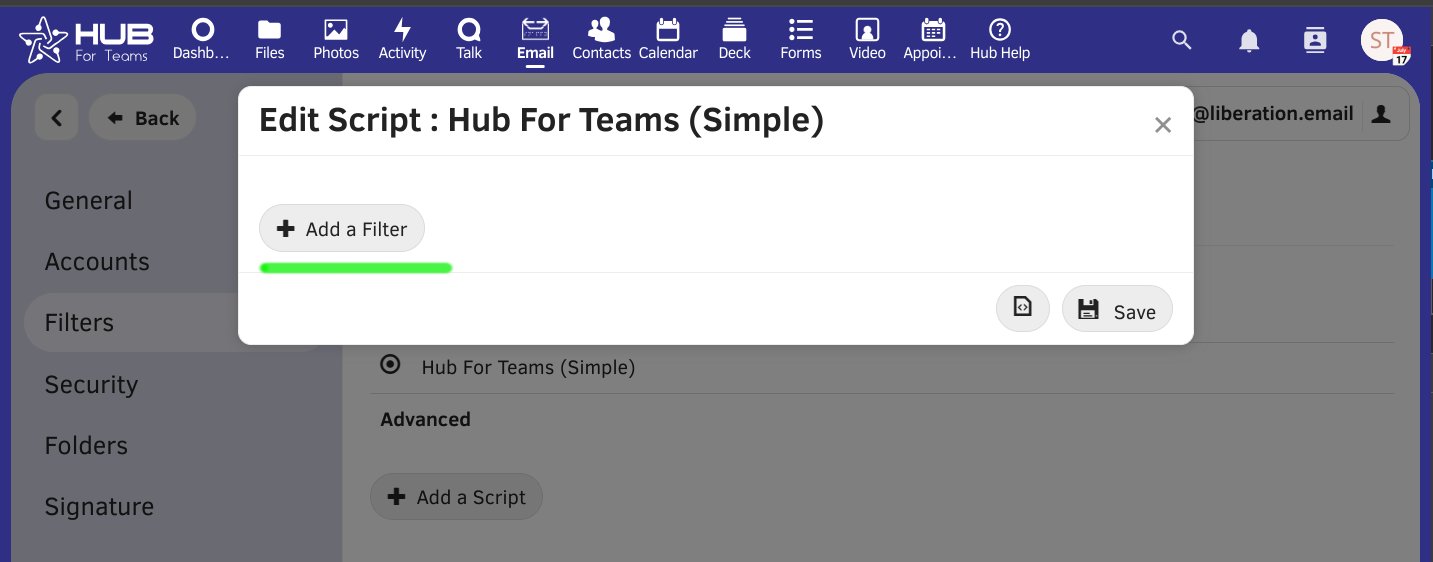
4. Click "Add Filter" button
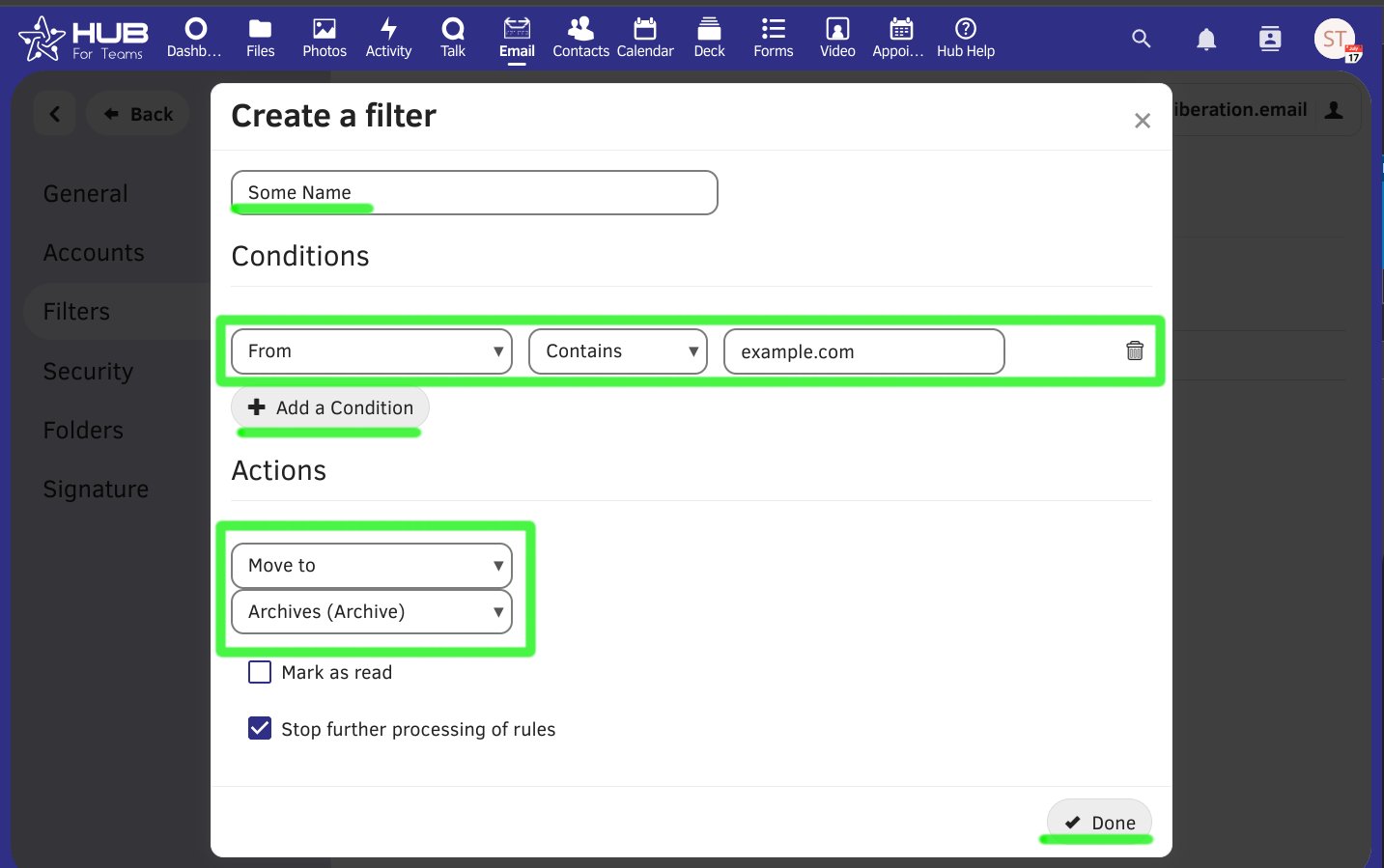
5. Name the filter
6. Set "Conditions" and "Actions"
1. Navigate to "Email > Settings > Filters"
2. Activate the "Hub For Teams (simple)" item by clicking on the little team
3. Click on the ""Hub For Teams (simple)"
4. Click "Add Filter" button
5. Name the filter
6. Set "Conditions" and "Actions"
Change sort order Visit mail settings Go to Sorting You can choose Oldest or...
Search in mailbox Added in version 2.1. At the top of the envelope list in any mail...
Unsubscribe from a mailing list Some mailing lists and newsletters allow to be...
Currently email "Out of Office" notifications can be manually configured in "Email > Settings...
This article has moved. See Adding Your Custom Domain to Your Hub.
