
Signing Documents with LibreSign
You can send document for signature by going to either the LibreSign module, or by sending it via the document page
Sending via the LibreSign Module
- Go to LibreSign in your Hub for Teams and select how you would like to upload your file.
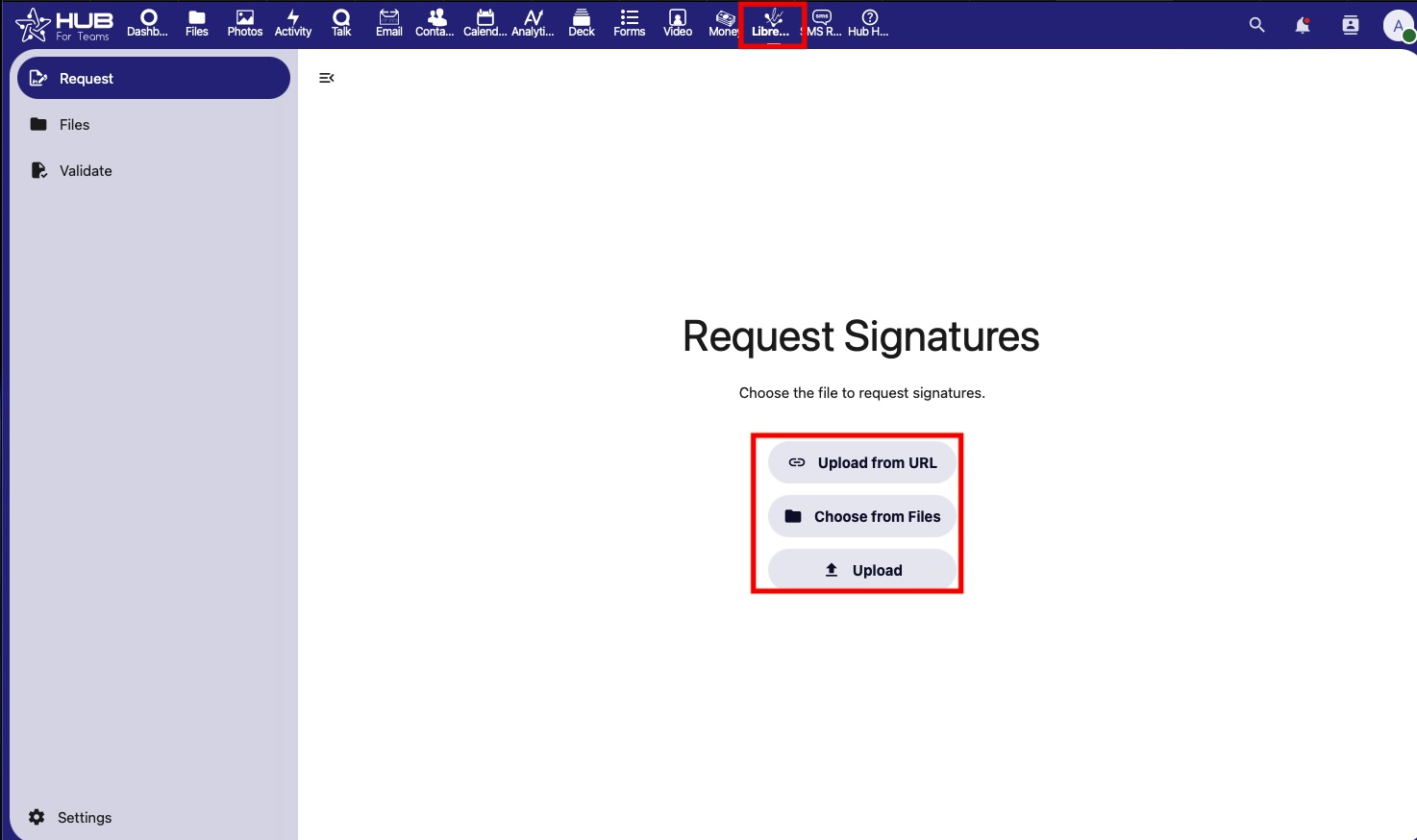
2. Select the file to send for signature
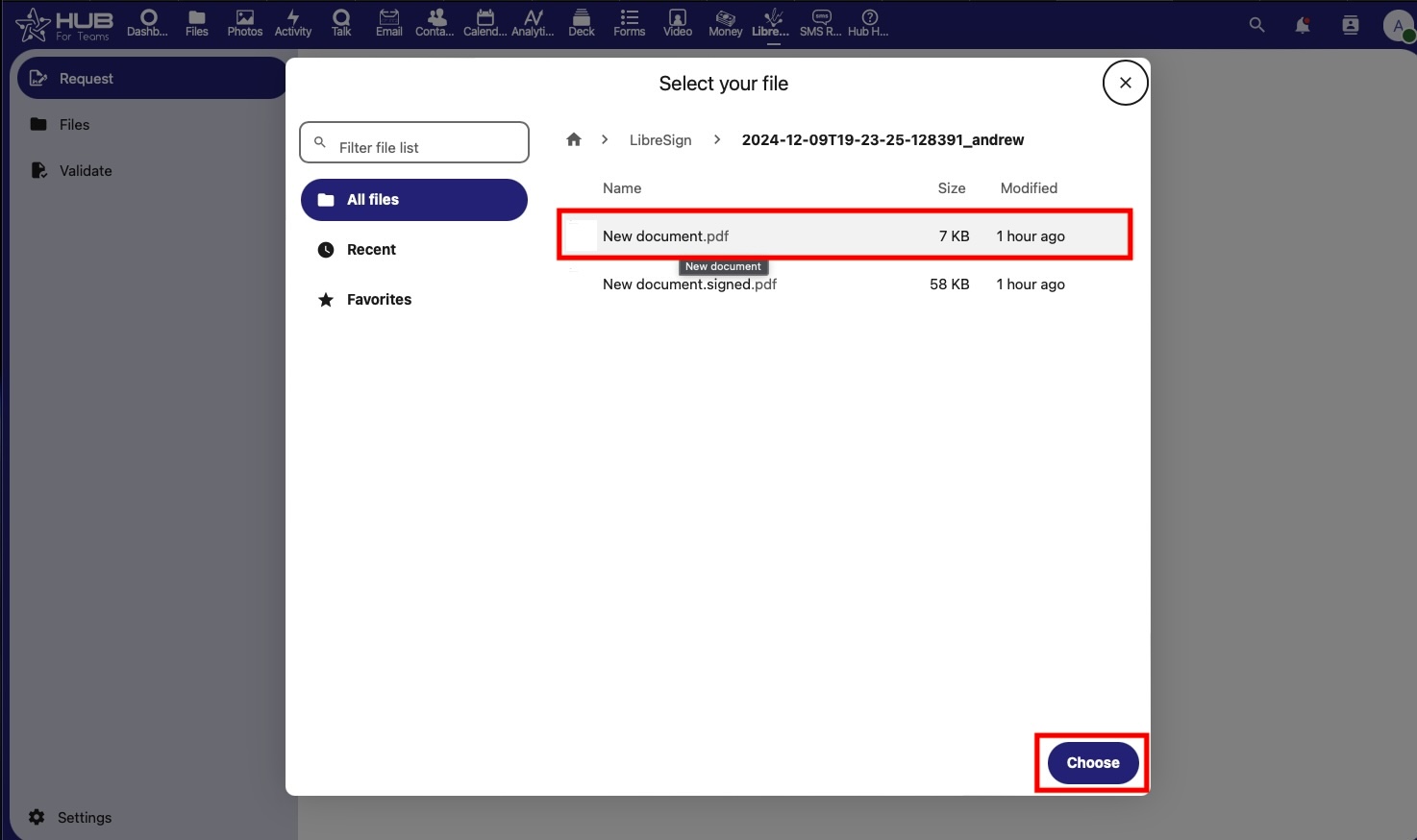
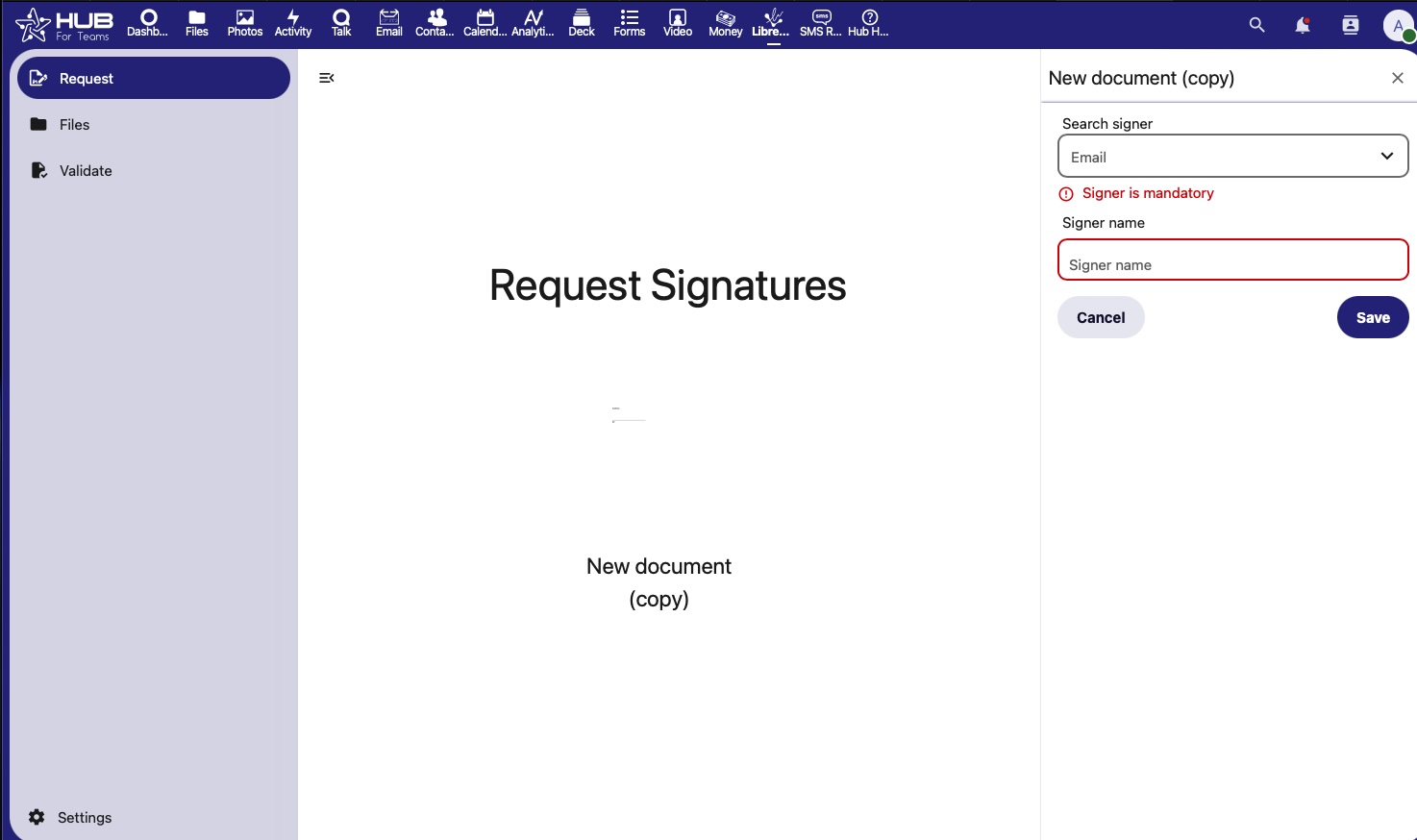
3. search or type the email of the recipient(s) that will sign the document.
4. Click on the users name to create a signature field, position it in your document where you want the signature to be applied.
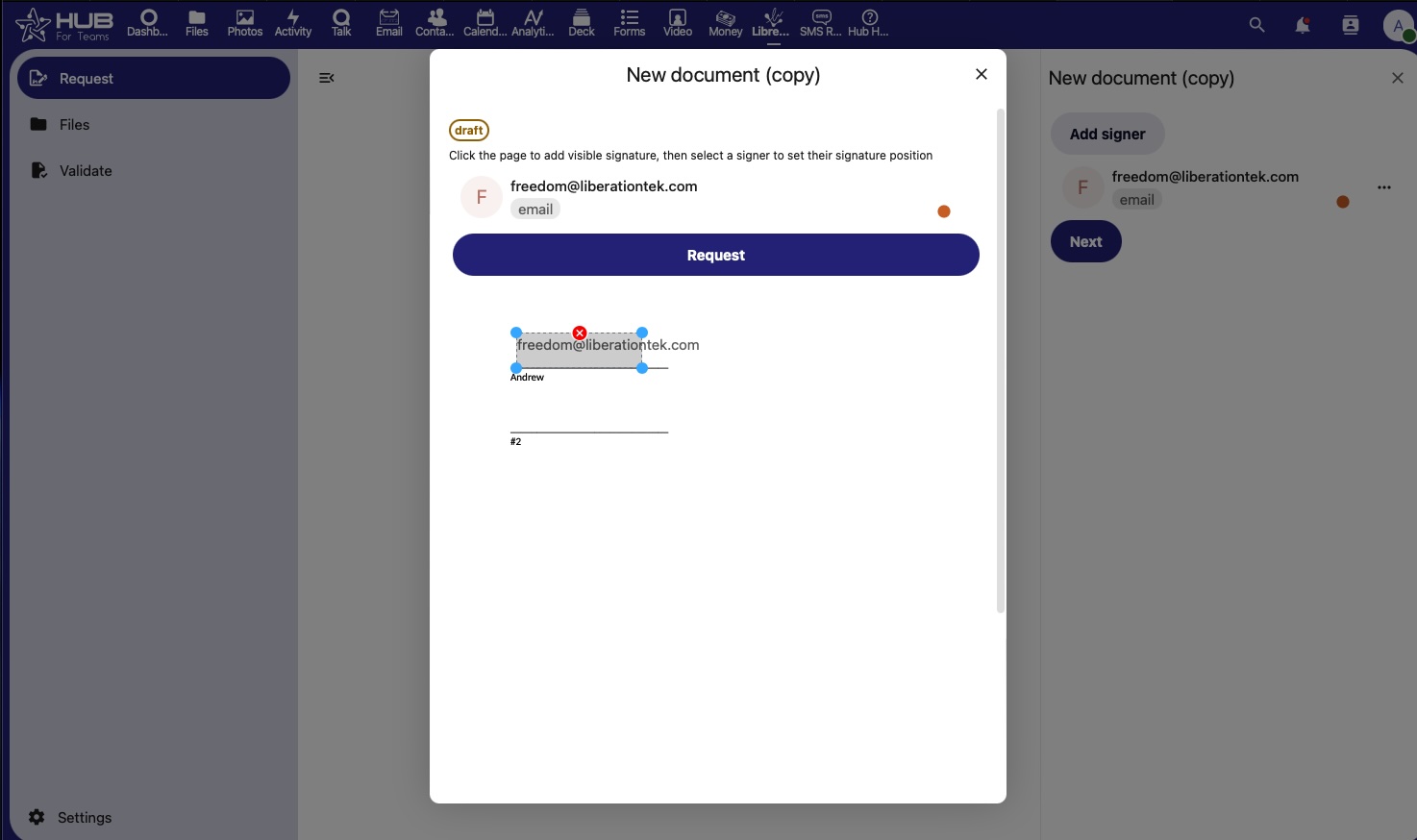
The document has now been sent for signature.
Sending via the Document
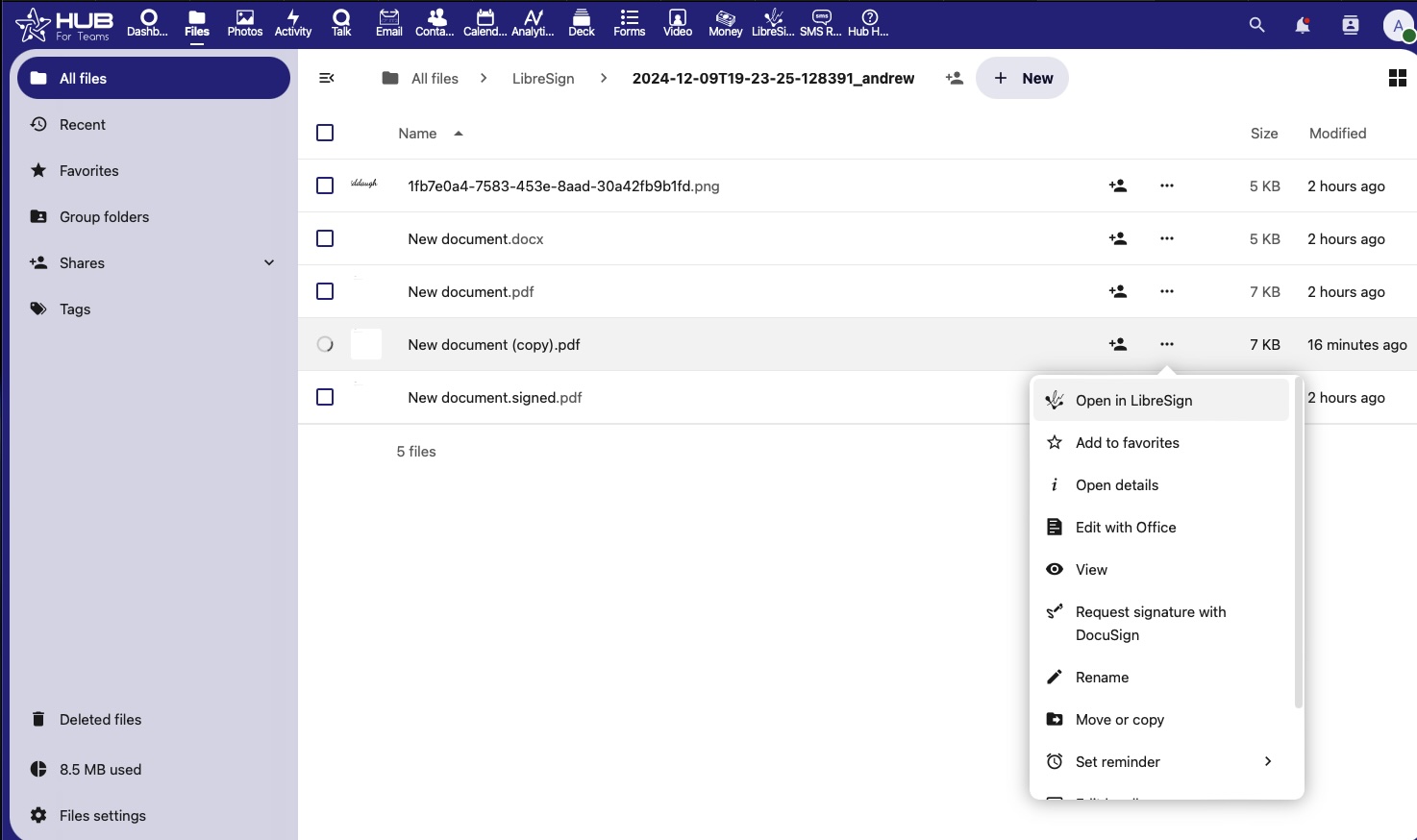
1. Click on the 3 dots next to the document you want to send for signature > Open in Libresign
3. search or type the email of the recipient(s) that will sign the document.
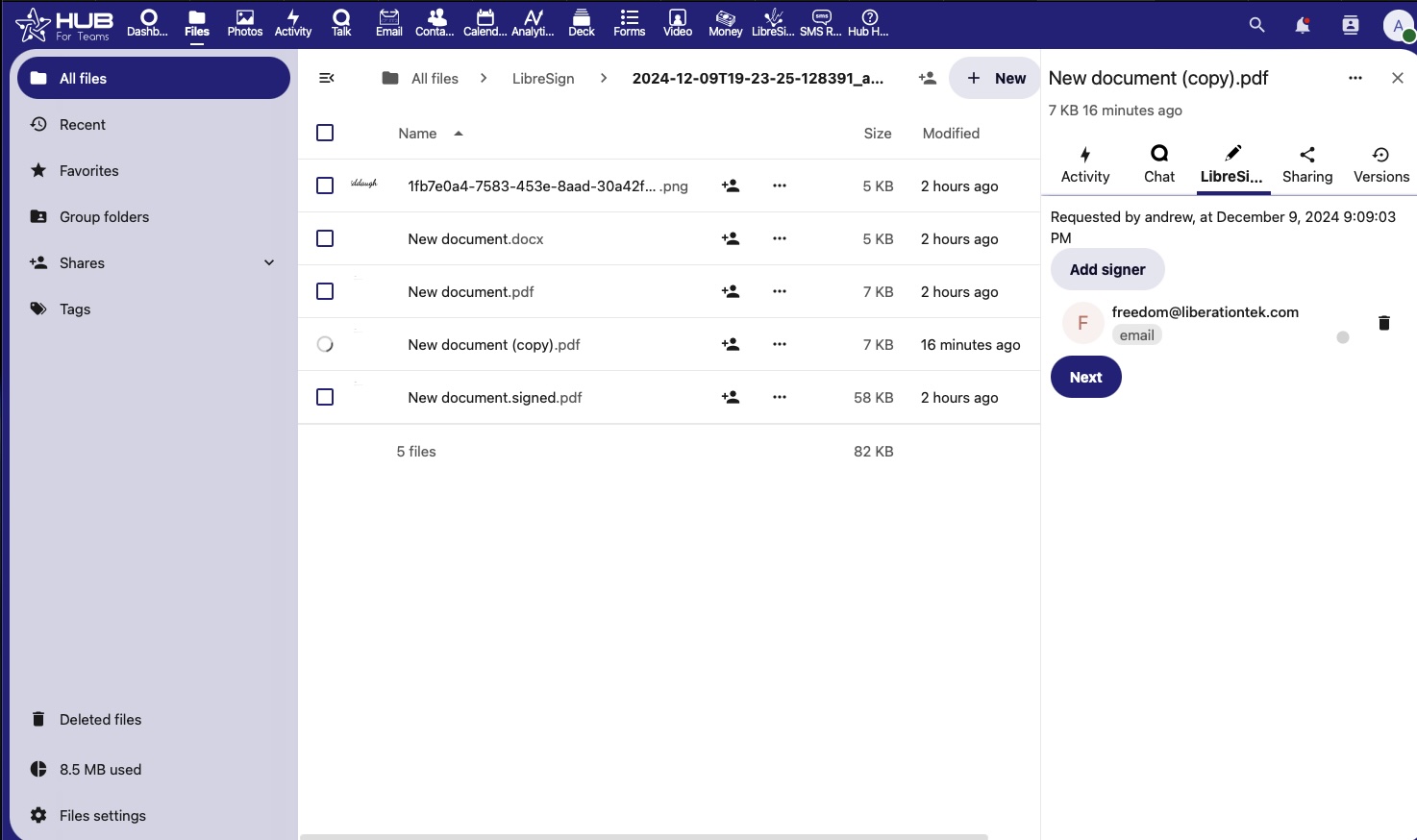
4. Click on the users name to create a signature field, position it in your document where you want the signature to be applied.
The document has now been sent for signature.
