
Use Domains in cPanel to add more websites to your hosting, create subdomains (such as blog.yourdomain.com) and force visitors onto https.
- Log in to the Client Area, go to Services > My Services and open your hosting service.
- Click Log in to cPanel in the menu on the left.
- In cPanel, click Domains. You can also type its name into the Search Tools box at the top.
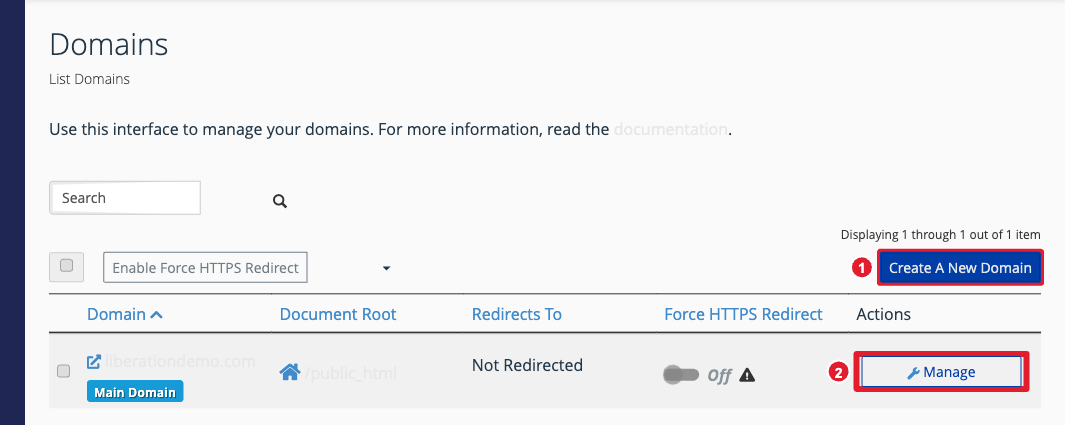
(1) Create a new domain or subdomain (2) Manage an existing domain
Add a domain or subdomain
- Click Create A New Domain.
- Type the domain (for example mysecondsite.com) or the subdomain (for example blog.yourdomain.com).
- To give it its own website, untick Share document root and check the Document Root folder it will use. Leave it ticked if it should show the same site as your main domain.
- Click Submit.
A new domain also needs its DNS pointed to your hosting. If it uses our nameservers this is done for you; otherwise point its A record to your hosting's IP address (see A Records). How many domains you can add depends on your plan.
Force https for a domain
Once the domain has an SSL certificate (see Install a Free SSL Certificate), turn on the Force HTTPS Redirect switch next to it. Visitors who type http:// are then sent to the secure https:// version.
Change or remove a domain
Click Manage next to the domain to change its document root or remove it. Removing a domain doesn't delete its files.
