
Follow these steps to migrate your Outlook Calendar to Hub for teams
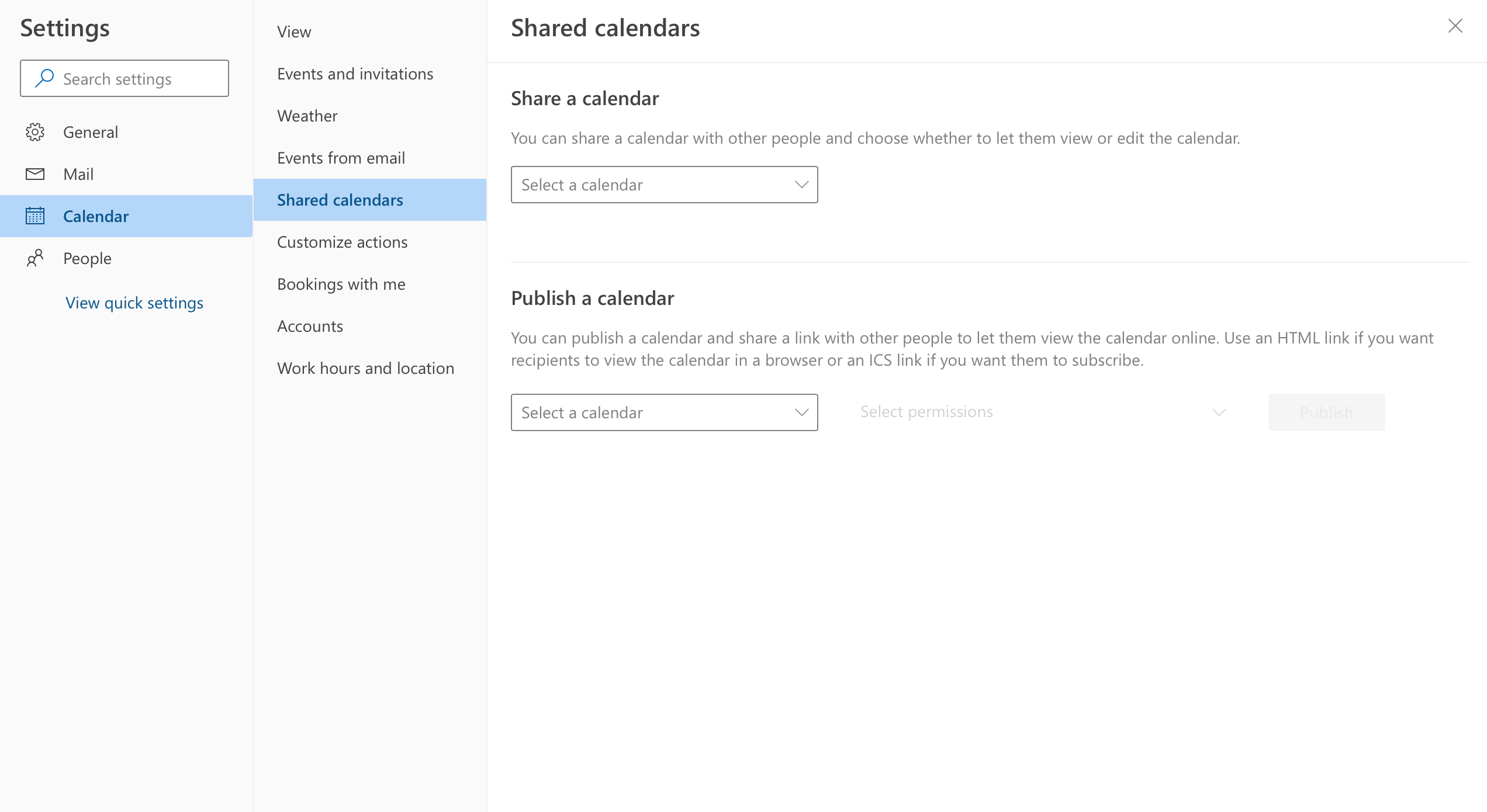
- Open Microsoft Outlook and click on "Settings" in the top right-hand corner. Then click on "View all Outlook settings".
- Select "Calendar" > "Shared Calendar"
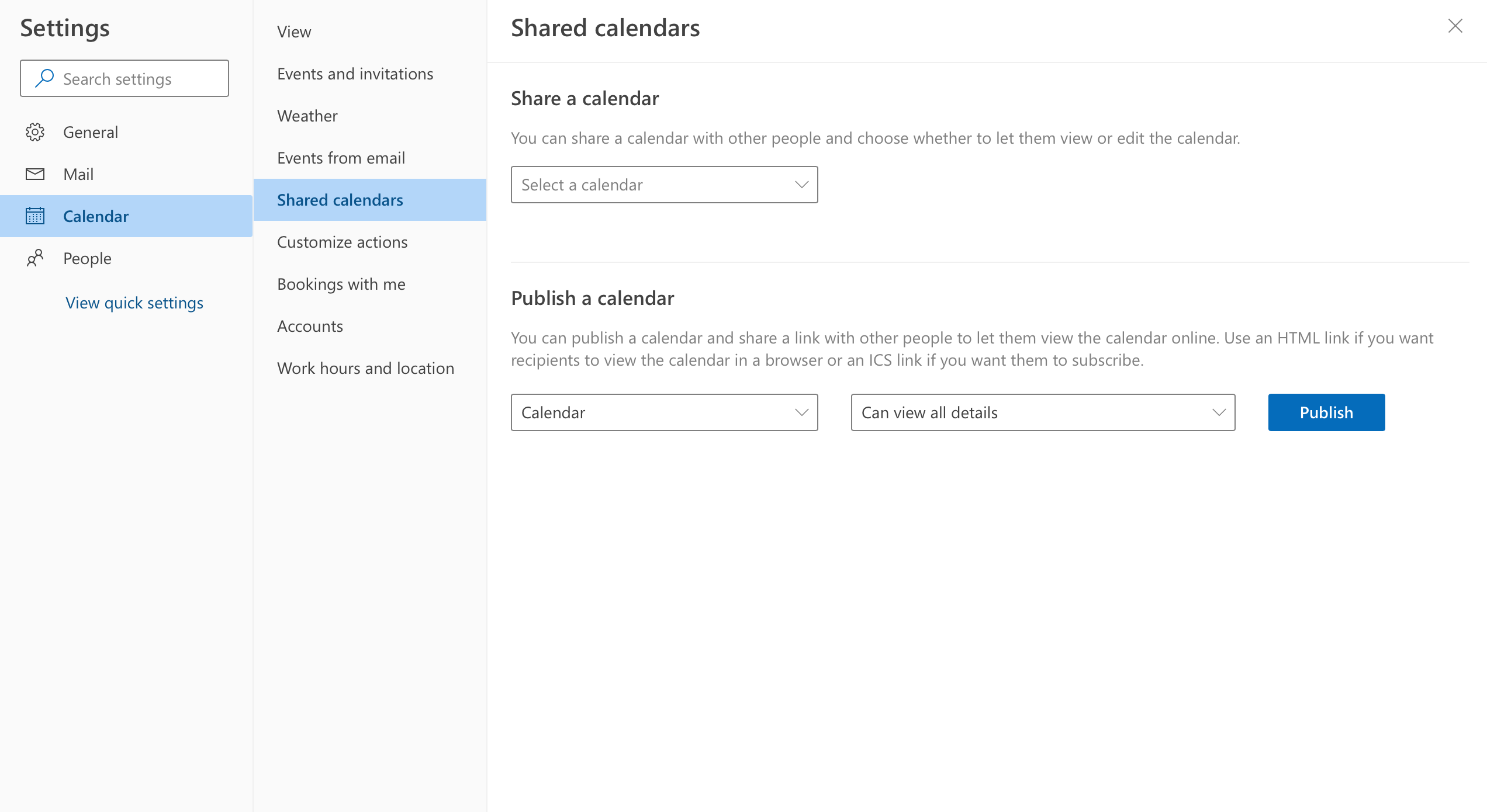
3. Select the calendar you want to share and then set the permission to "View all details" and click "Publish"
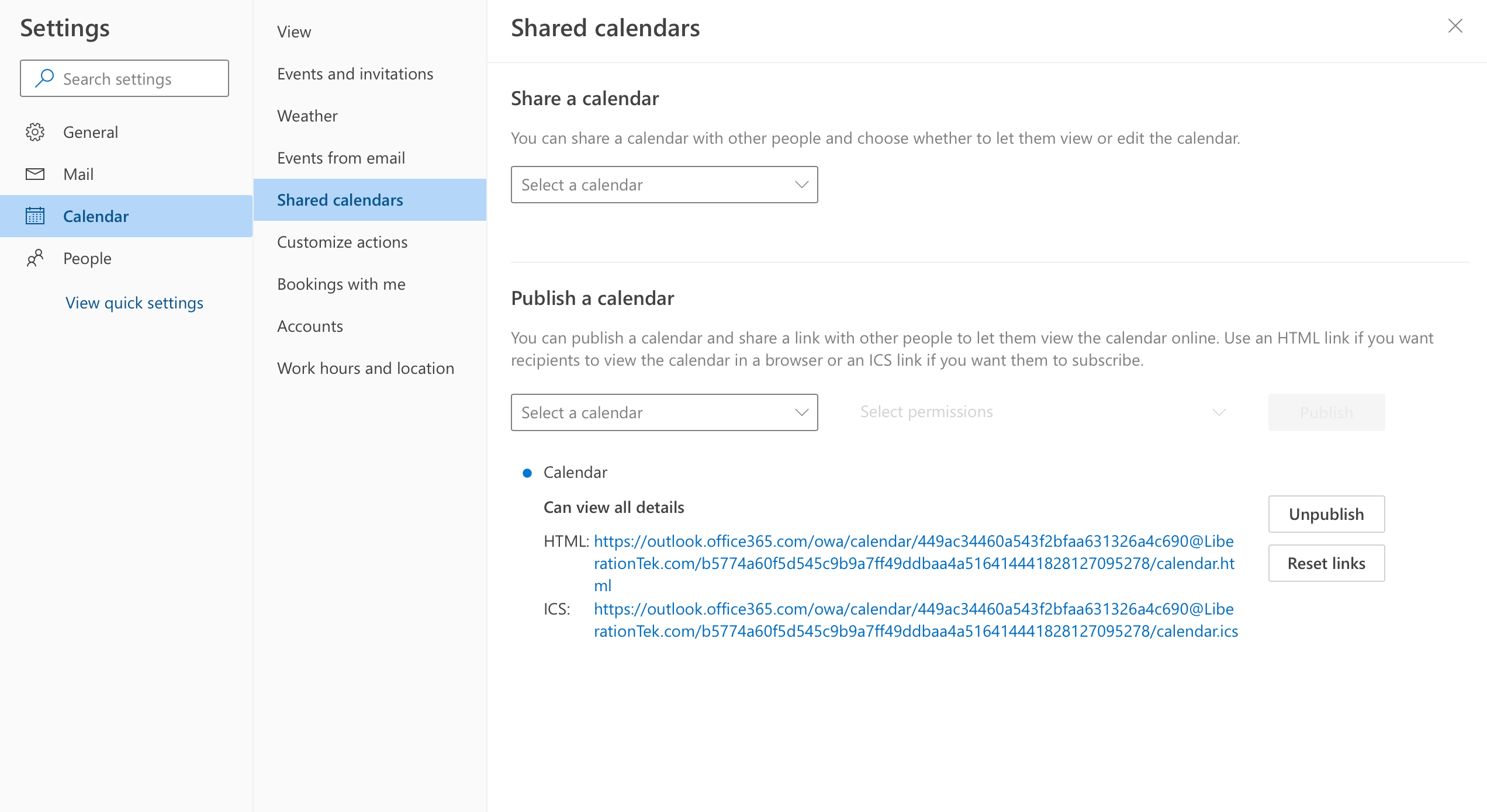
4. Select the ICS Download link.
5. Open Hub for Teams Calendar Settings and select Import Calendar
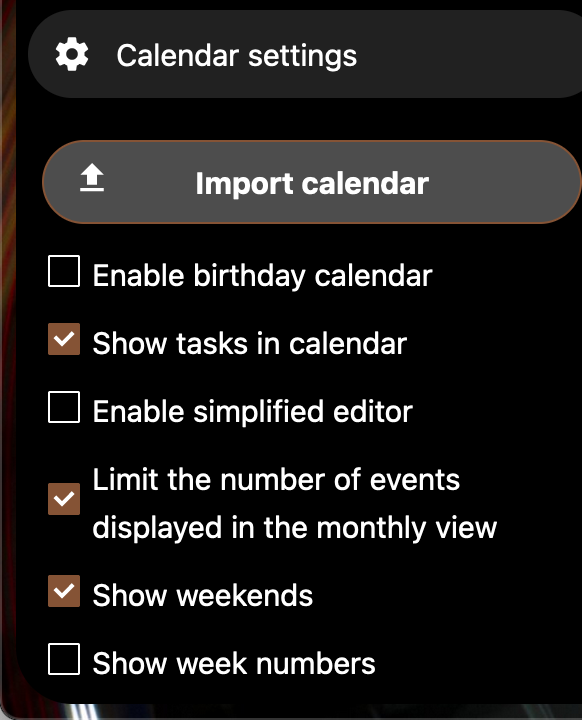
6. Select the ICS file that you downloaded from outlook and select done. Your calendar migration should complete in a couple of minutes and will be seen in your Hub for Teams Calendar.
