
You can change common PHP settings, such as the memory limit and the maximum upload size, in MultiPHP INI Editor. Use this if you see errors like "Allowed memory size of ... bytes exhausted" or "The uploaded file exceeds the upload_max_filesize directive".
Change a PHP setting
- Log in to the Client Area, go to Services > My Services and open your hosting service.
- Click Log in to cPanel in the menu on the left.
- In cPanel, click MultiPHP INI Editor. You can also type its name into the Search Tools box at the top.
- On the Basic Mode tab, choose your domain (or Home Directory) in the location list.
- Change the settings you need.
- Scroll down and click Apply.
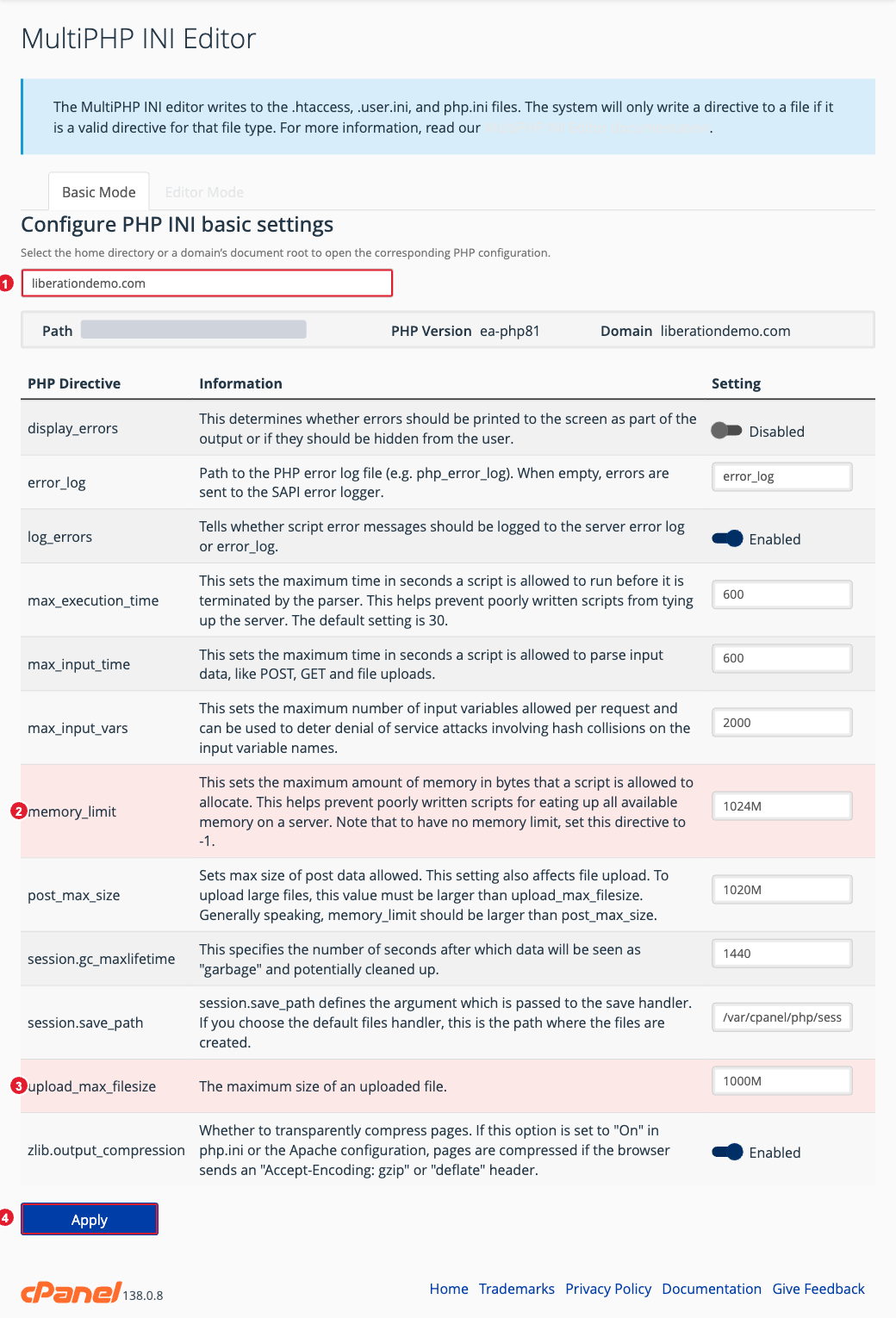
(1) Choose the domain (2) memory_limit (3) upload_max_filesize (4) Apply
Settings people change most
| Setting | What it controls |
|---|---|
| memory_limit | The most memory one script can use. Raise it if you see "Allowed memory size exhausted". |
| upload_max_filesize | The largest single file that can be uploaded (for example in WordPress Media). |
| post_max_size | The largest form submission. Keep it a little larger than upload_max_filesize. |
| max_execution_time | How many seconds a script may run before it is stopped. |
| max_input_vars | How many form fields a page can send. Raise it if big menus or settings pages don't save. |
| display_errors | Shows PHP errors on the page. Leave it Disabled on a live site; errors are written to the error log instead. |
Your plan has its own resource limits, so very high values may not take effect. If a setting doesn't seem to change anything, open a support ticket.
Tip: To change the PHP version itself, see Change Your PHP Version (MultiPHP Manager).
