
There are two ways to change your cPanel password.
From the Client Area (also works if you've forgotten it)
- Log in to the Client Area, go to Services > My Services and open your hosting service.
- Click Change Password in the menu on the left.
- Enter the new password twice and save.
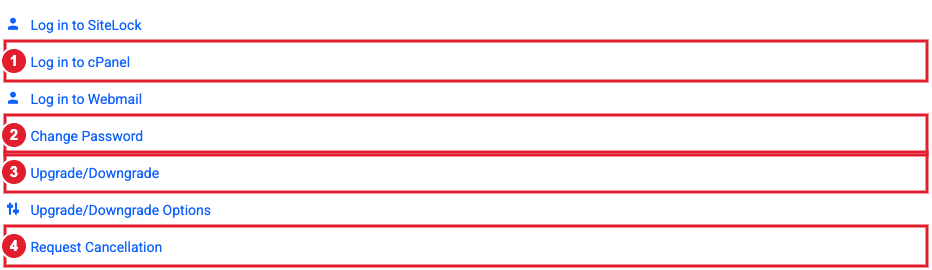
(2) Change Password
You don't need your cPanel password for everyday use: Log in to cPanel on the same page signs you in automatically.
From inside cPanel
- Log in to the Client Area, go to Services > My Services and open your hosting service.
- Click Log in to cPanel in the menu on the left.
- In cPanel, click Password & Security. You can also type its name into the Search Tools box at the top.
- Enter your Old Password, then the New Password twice. Password Generator can make a strong one for you.
- Click Change your password now! You'll be signed out and need to log in again.
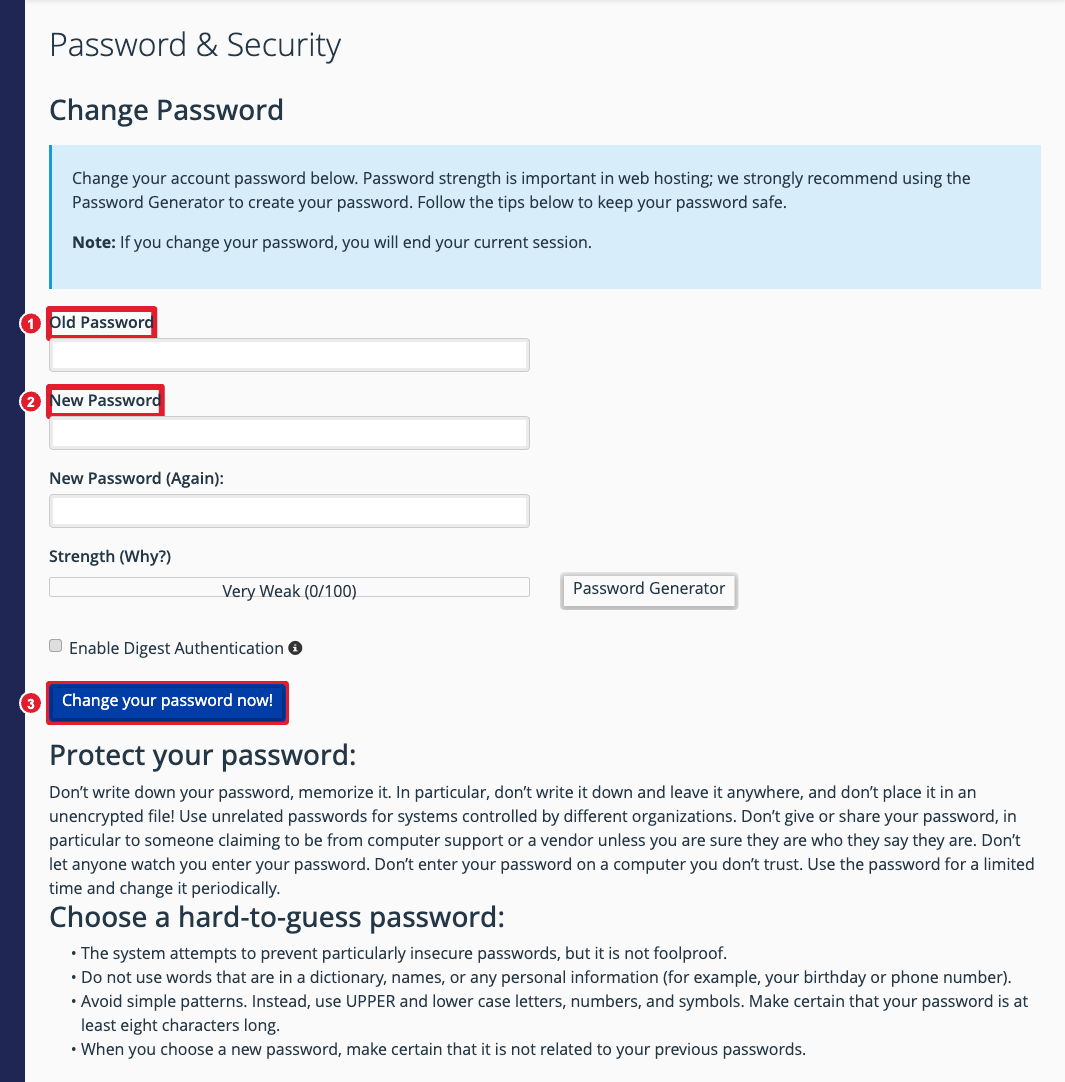
(1) Old password (2) New password (3) Save
Important: Your cPanel password is also used for FTP with your main cPanel username and for connecting apps to your account. Update it anywhere you’ve saved it.
