
We back up hosting accounts automatically, and you can also download your own copies at any time from Backup in cPanel. Keep a recent copy on your computer, especially before big changes such as updates or redesigns.
- Log in to the Client Area, go to Services > My Services and open your hosting service.
- Click Log in to cPanel in the menu on the left.
- In cPanel, click Backup. You can also type its name into the Search Tools box at the top.
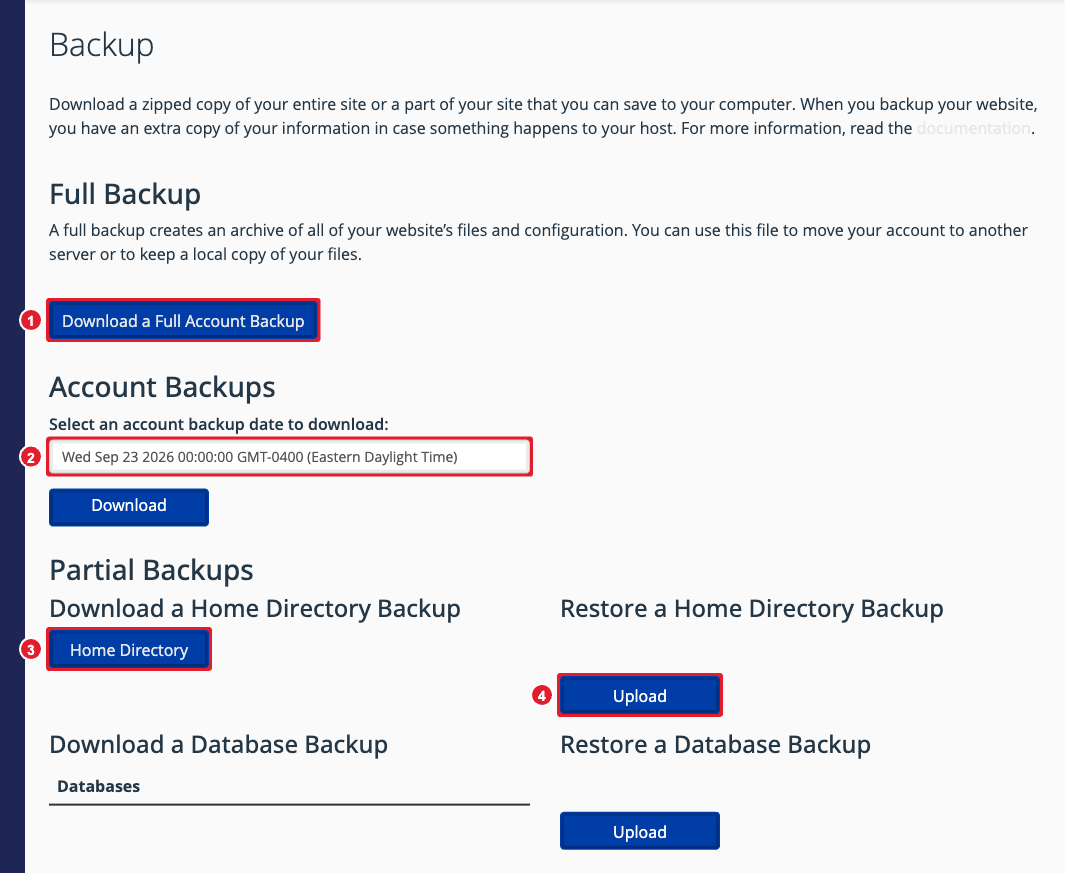
(1) Download a full account backup (2) Our automatic backups, by date (3) Download your website files (4) Restore files from a backup
Download a full backup
A full backup has everything in your account: files, databases and settings. Use it to keep an off-site copy or to move to another host.
- Click Download a Full Account Backup.
- Choose Home Directory as the destination, enter your email address if you want to be told when it's ready, and click Generate Backup.
- When it's finished, come back to the Backup page and click the new file to download it.
A full backup can only be restored by our team. To restore one, open a support ticket.
Download one of our automatic backups
Under Account Backups, choose a date from the list and click Download. The list shows the backup dates we currently hold for your account.
Back up or restore only part of your site
- Website files: click Home Directory under Download a Home Directory Backup. To restore, choose the file under Restore a Home Directory Backup and click Upload.
- A database: click the database name under Download a Database Backup. To restore, choose the .sql.gz file under Restore a Database Backup and click Upload.
Restore a single file or folder
To get back one file or folder from an automatic backup without restoring everything, use File and Directory Restoration.
What happens when you cancel
When a service is cancelled, we keep its data for 7 days and then delete it permanently. Download a full backup before you cancel. See Data Retention and Restoration.
